
Podcast Episodes
The Podcasts screen in your dashboard contains a list of your shows. There you can add / delete podcasts, find podcast reviews, edit the podcast data and manage the episodes of your podcast. Clicking on the podcast itself would lead you to the list of all episodes associated with the podcast:
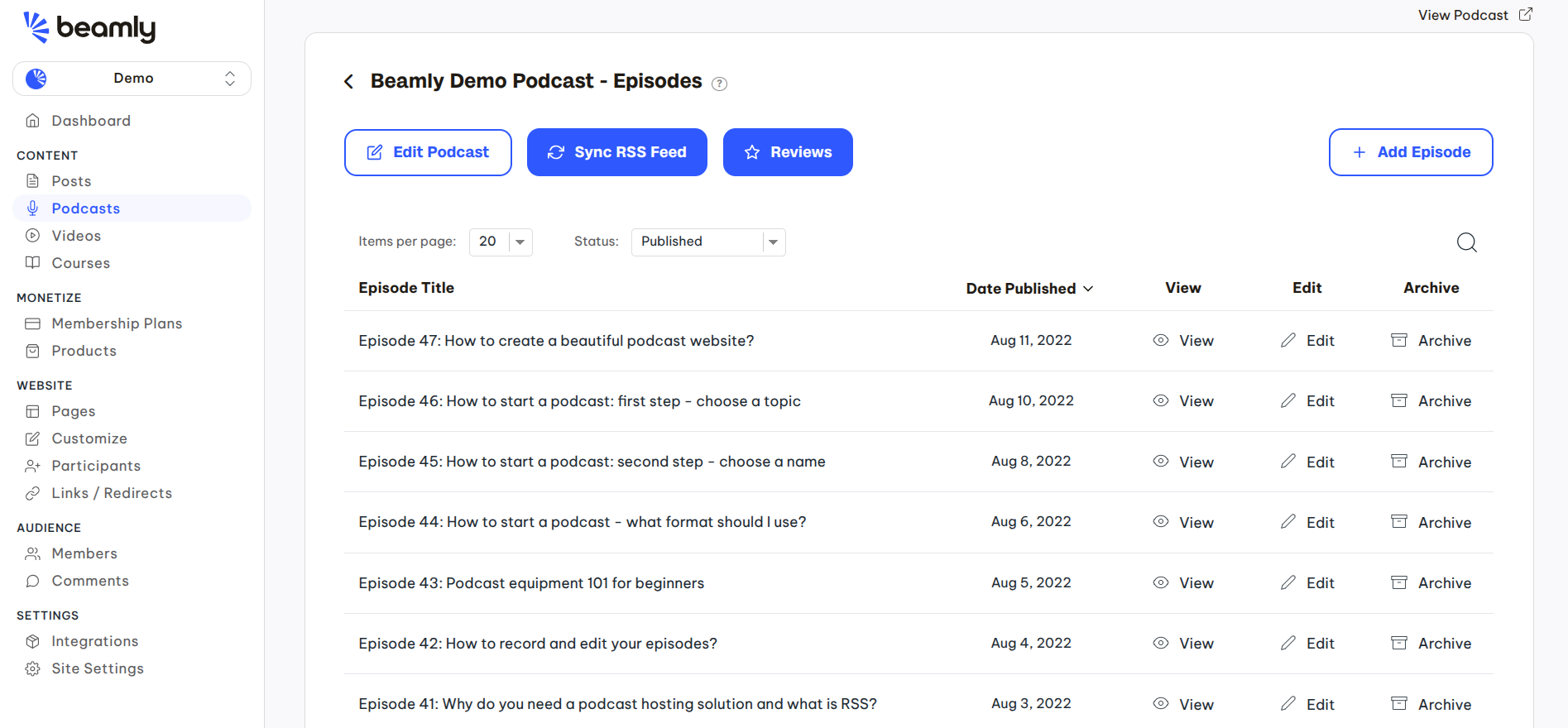
If you're using Beamly as your podcast host, here's where you can create and upload new episodes and manage them. If you sync an existing podcast feed - you can still easily manage the content of your episodes and override any data that's automatically imported from the RSS feed.
On this page you can find distribution options (for hosted podcasts) or force an RSS feed sync (for synced podcasts). Then you can "archive" episodes to hide them from the website but keep it in case you want to restore in the future.
Editing episodes
When you click on any of the episodes (or the Edit button), you'll find the episode editor form:
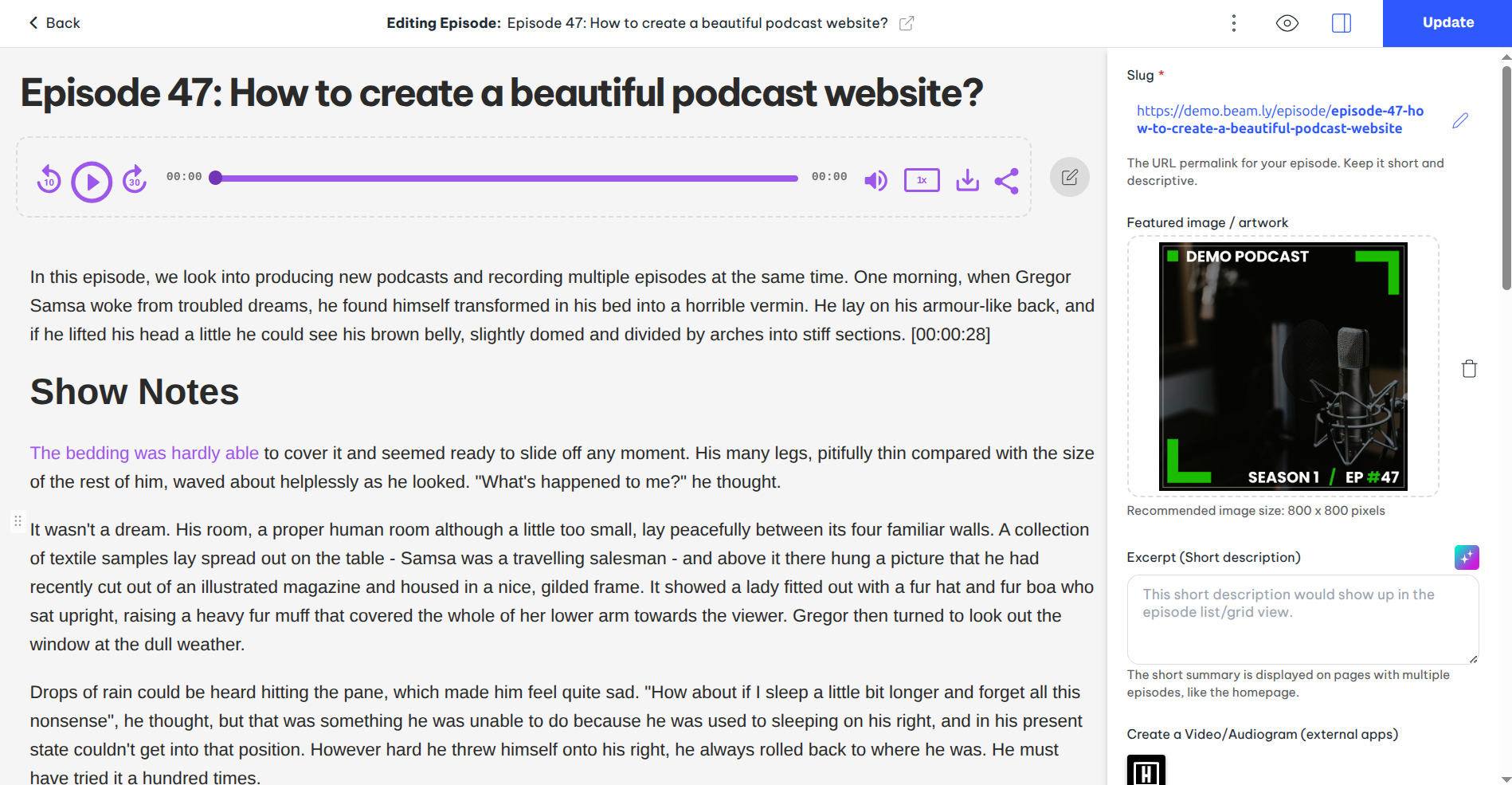
You can easily change the episode show notes, schedule to a different date, add a transcript, assign categories/tags and much more. Here's where you can also upload an audio file, embed videos and more.
You'll find a lot of different options in the sidebar, here are a few highlights -
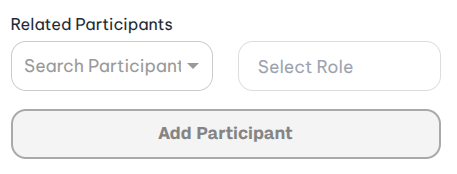
- Add participants (podcast guests/hosts/editors/producers etc.) to the episodes.
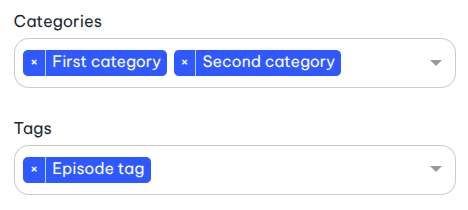
- Add categories and tags. (useful for filters and dynamically created pages)
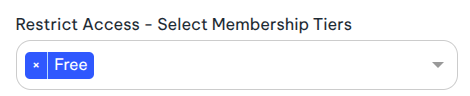
- Mark the episode as private/premium by associating it with a membership plan or product.
-
Schedule an episode to a future date.
Note - For imported/synced podcasts, once you make any change to an episode, that episode would immediately stop syncing from the RSS feed.
We do this to protect your custom content from being overwritten from the RSS feed. In case you migrate your show to another host or want to update core fields like the audio URL, thumbnail and so on - you can use the 'Force Feed Re-Sync' option in your 'Edit Podcast' screen.
Episode Attachments
- PDF transcripts or show notes
- Worksheets or resources mentioned in the episode
- Bonus audio or video files