
Publish Video Podcasts on Apple Podcasts (HLS)
Apple Podcasts now supports video podcasts that can be watched directly on the app, powered by HLS technology. This lets listeners switch between audio and video with a tap, online or offline. It's optimized for whichever bandwidth or device the user is using.
When you upload a video to an episode on Beamly, we convert it to the correct format, and deliver it to Apple Podcasts for you. Your show stays the same on Apple Podcasts, and videos are added alongside audio where available. Other podcast apps keep reading your RSS feed exactly as before.
What you need
- A podcast hosted on Beamly and listed on Apple Podcasts. See Submitting your show to Apple Podcasts.
- A public podcast. (Video on Apple Podcasts isn't available for private podcasts)
- A Beamly plan that includes video hosting.
- An Apple account and an Apple Podcasts Connect account.
Setup takes three steps, and you only do it once per show. You'll find all three in Distribution > Apple Podcasts, under the podcast you're currently working on.
Step 1: Claim your show
Apple only delivers video for shows that are in the podcaster's own Apple Podcasts Connect account. If you used Beamly's 1-click submission, you'd have to claim your show first. The process is quite simple:
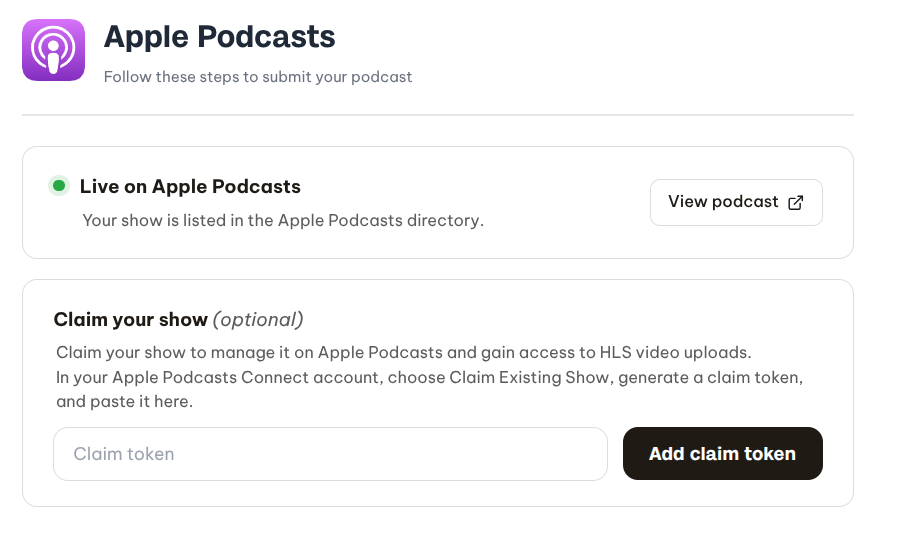
- Open the Distribution settings panel, then click on Apple Podcasts.
- If your show is already published on Apple Podcasts, you'd be able to claim it here. (if it's not published on Apple just yet - you should submit it before proceeding)
- In Apple Podcasts Connect account, click on Claim Existing Show.
- Copy the Claim Token provided on Apple Podcasts Connect and paste it in your Beamly dashboard.
This step can take a moment to complete. After your show is claimed, the Video on Apple Podcasts section should appear.
If you moved a show that was already on Apple Podcasts to Beamly hosting, it's already linked to your Apple account. Go straight to Step 2.
Step 2: Add your Apple API key
The API key lets Beamly send your videos to Apple on your behalf.
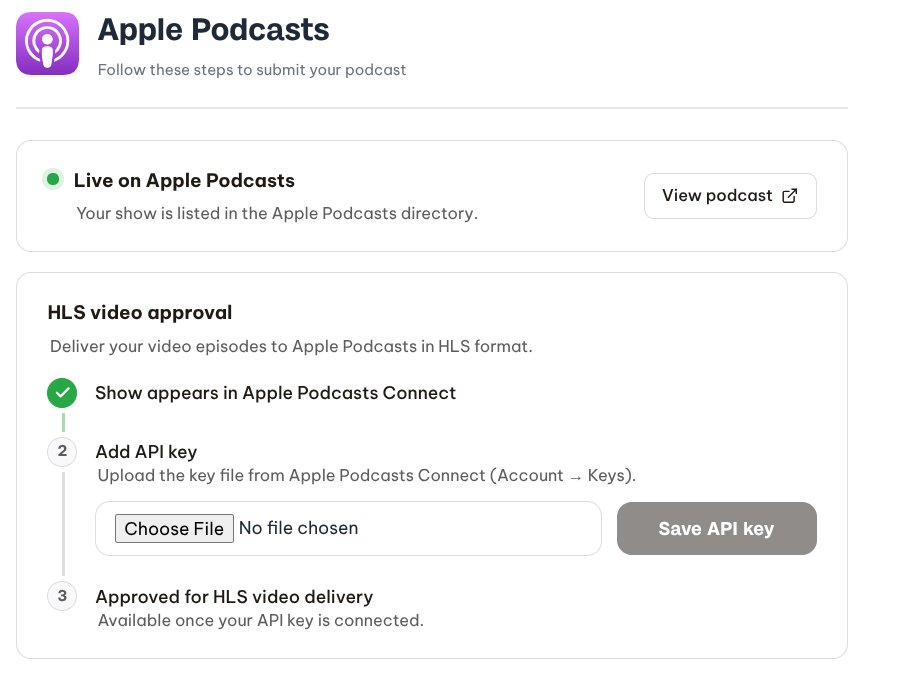
- In Apple Podcasts Connect, go to Account > Keys.
- Click the + icon to create a new key. Give it a name you'll recognize, like "Beamly" or "HLS Publishing", and download the key file.
- In Beamly, under Add API key, choose the file you downloaded and click Save API key.
Don't rename the key file. Beamly reads your issuer ID and key ID from the original file name. A renamed file shows an "Incorrect API key file format" error.
Beamly checks the key with Apple before saving it. If saving fails, make sure you created the key in the same Apple Podcasts Connect account that owns the show.
Once the key is saved, the step shows API connected. To disconnect, click Remove saved key. Beamly stops sending videos to Apple until you add a new key.
Step 3: Get approved for video
Apple reviews each show before turning on video. You send this request to Apple yourself:
- In Apple Podcasts Connect, click Contact Us at the bottom of the page.
- Choose the topic HLS Video.
- Enter your show title, your Apple Podcasts show ID, and your RSS feed URL. Then click Send.
- Wait for approval by Apple. You can check progress within Beamly via the Check status button.
Publishing a video episode
After all three steps are completed - you're all set to start adding videos to Apple Podcasts:
- Create a new episode, or open an existing one.
- Always upload your video in the Video File field (by clicking on the three dots on the right side), or drop it into the media area at the top of the editor.
- Wait while Beamly processes the video.
- Save or publish the episode.
Every time you save an episode with a new or changed video, Beamly sends it to Apple. For episodes that aren't on Apple Podcasts yet, such as scheduled episodes, Beamly sends the video in advance, so the episode appears on Apple Podcasts with video once you publish the episode.
Only videos you upload to Beamly go to Apple Podcasts. Video links from other hosts and embedded players (like YouTube) stay on your website and are never sent to Apple.
Tips for video episodes
- Use the same recording for your audio and your video, with any ads in the same places, so listeners can switch between them at any point.
- If not added automatically for some reason - add a thumbnail in the Video Thumbnail / Poster Image field so your episode has a cover frame on your website.
Frequently asked questions
Does this change my RSS feed?
Beamly sends the HLS video to Apple through Apple's API. Your RSS feed and every other podcast app keep working the same way. The only change you might notice is the <podcast:alternateEnclosure> tag that would be added to your episodes. Any other app that supports this tag would also display your videos.
Where can people watch my video episodes?
In the Apple Podcasts app on iPhone, iPad, Mac, Apple TV, and Apple Vision Pro, and in the Apple Podcasts web app. Offline video requires the listener to opt in to video downloads.
Can I publish video for a private or imported podcast?
No. Video on Apple Podcasts works for public podcasts hosted on Beamly.
How do I stop sending video to Apple?
On the Distribution screen, click Remove saved key in the Add API key step. Beamly stops sending new videos to Apple when you remove your key, but your feed and episodes stay on Apple Podcasts.
Why didn't my video show up on Apple Podcasts?
Check that all three setup steps show a check mark, that the video was uploaded to Beamly (not linked or embedded), and that you saved the episode after setup was complete. If everything looks right and the video still isn't there, contact us and we'll take a look.