
Site Customizer
With Beamly your site can be launched and published within minutes, but it's also fully customizable.
If you really want to make it your own, check out the hundreds of options we included in the Customize screen.
The Customize panel lets you modify global options, layout settings, adjust your brand colors, and adjust all the different areas of your site.
Note - The Customize area provides a lot of flexibility around global settings, layout options, colors, typography, and more.
That said - this is generally not where you'd modify the actual content on the site - that can be done elsewhere in your dashboard by editing those content entries directly.
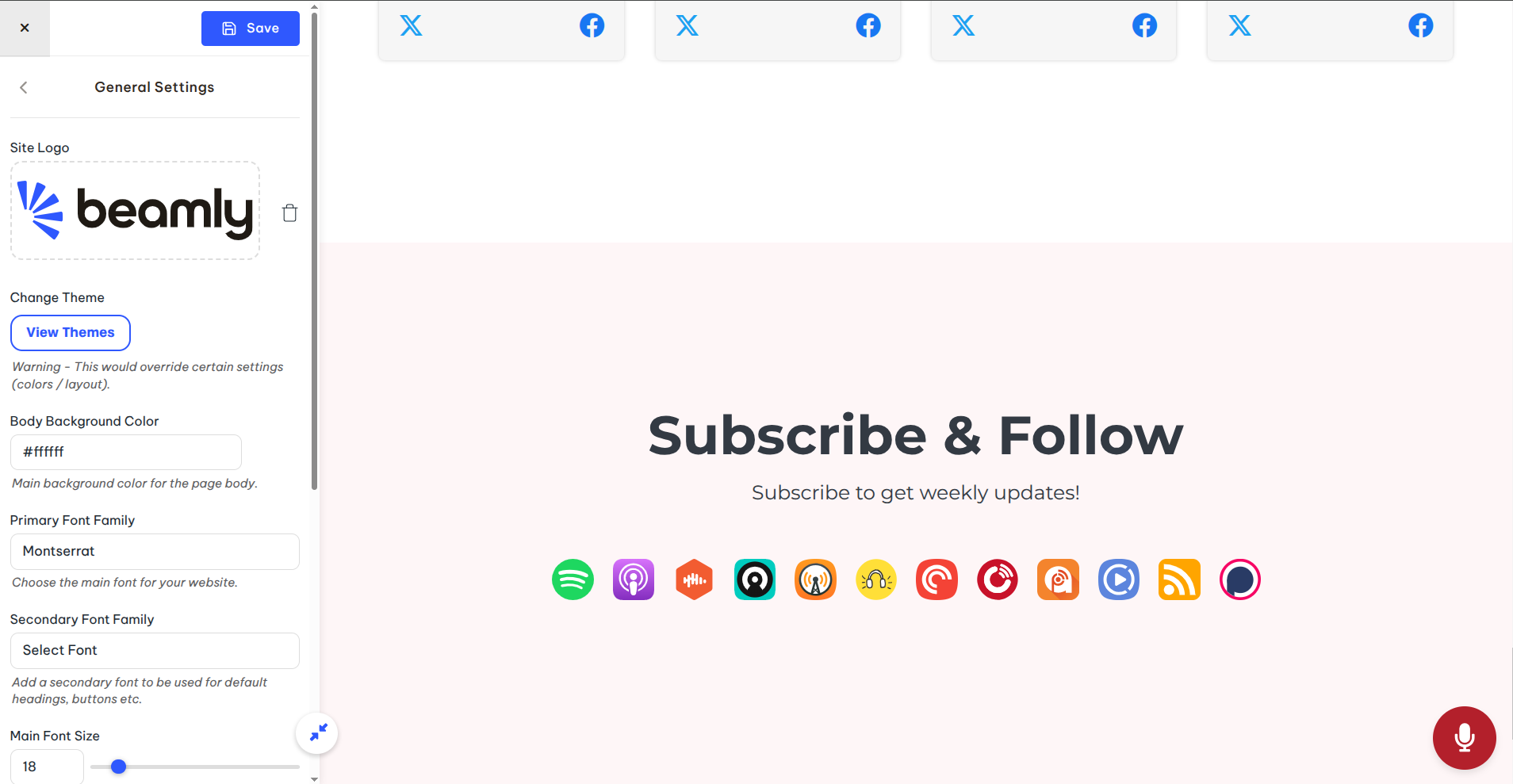
The customize area contains multiple sections. Each section has its own set of options you can modify. A brief overview of each section is provided below:
1. Branding
In the 'Branding' section, you'll be able to upload your logo, change your theme, set your default fonts and font sizes, change the primary colors and body background color, background color and more.
Example: updating your theme -

2. Site Layout
Here you can find multiple sub-sections with a bunch of layout settings around your site. Here's a quick breakdown of all the sub-sections:
- Global - here you can modify global layout options like the default body padding, default text direction, animated loaders, add a scroll-to-top button and so on.
- Header - this section includes the main options around the header layout:
- Sticky / Fixed header (follows you as you scroll down the page)
- Transparent Header (a 'floating' header mode that sits on top of the initial section on each page)
- Logo (position, size, layout)
- Navigation/Menu options (styles, position, typography, layout)
- Navigation/Menu Links - add/modify menu items, add sub-navigation items, configure link icons etc.
- Top Header - add a top banner/announcement bar to the top of your website.
- Sidebars - control default sidebars and add content.
- Footer Layout - control different options around the footer like layout, colors, styles and widgets.
- Footer Copyright - customize the copyright section that's on the very bottom of your site.
3. Content Settings
Here you can adjust default layouts of the content around your website. It also include a few sub-sections:
- Section header area - the header area for your podcast pages, channel pages and course pages. You can customize the default spacing, colors and more.
- Default items grid/list - default settings for lists of episodes/videos/lessons on your site.
- Single Item Pages - how individual episode/blog/video/lesson pages look like.
- Page styles - default options for regular landing pages.
- Blog post styles - default options for individual posts.
4. Media Player
We offer a fully flexible and customizable audio and video player. In this section, you can find a bunch of settings related to your site's media player to adjust how it looks and works. We go over the player in-depth here.
5. Engagement & Growth
Here you can control your comment sections, the voicemail voice recording widget, and custom popups.
6. Advanced Settings
-
Enable a "Maintenance" or "Coming Soon" mode helps you hide the site while you work on it, and display a temporary landing page with custom info. More info here.
- Custom CSS code - easily add custom CSS code to your site in case you want to make advanced design/layout changes. The custom CSS applies globally, and you can add as many new rules as you'd like.
Additional Customization
The customizer area is built to help you adjust global styles for your website. If you need to edit a particular page like your "Home" page or "Episodes" page, you can easily do it with the page editor.