
Video Channels
Import your Video Channels from YouTube or host on Beamly.
Manage video content from one place: import YouTube channels/playlists or create Beamly-hosted channels and upload videos directly.
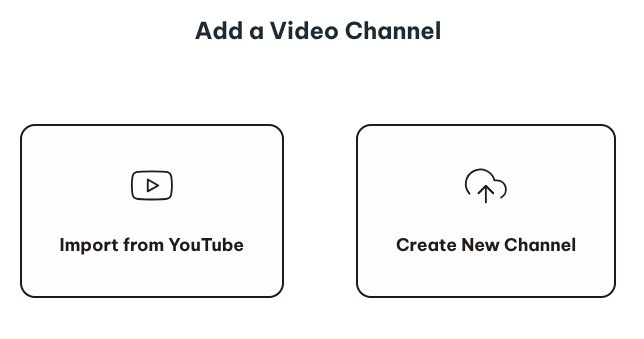
Add a new channel
- Open the Videos area in your dashboard.
- Click Add Channel.
- Choose one:
- Import from YouTube
- Create New Channel (hosted on Beamly)
Importing from YouTube
You can import and sync videos from your YouTube channels or playlists. Support import formats include:
Channel:  https://www.youtube.com/channel/UCBR8-60-B28hp2BmDPdntcQ
Handle:   https://www.youtube.com/@BeamlyHQ
Playlist: https://www.youtube.com/watch?v=ODmPBer3CS0&list=PLdDI-u9rjBmXZZv4YHhTdX79gwDaIQ2wL
Short links like https://www.youtube.com/c/channel-name may work but are much less reliable.
https://www.youtube.com/c/my-cool-channel
After you connect your YouTube content:
- Your channel/playlist info and videos are pulled in.
- New YouTube videos are imported automatically.
- You can trigger a manual refresh anytime using Sync Videos on the channel.
If you need more info about finding your YouTube URLs, please refer to this page - https://support.google.com/youtube/answer/6180214
Create a Beamly‑hosted channel
- Create a new channel by providing a Title (required), Description (optional) and Artwork/thumbnail (optional).
- Click save - Your channel is created instantly and ready for new video uploads.
Manage Videos
By clicking on the channel itself, after you create or import one, you'll find a list with all videos:
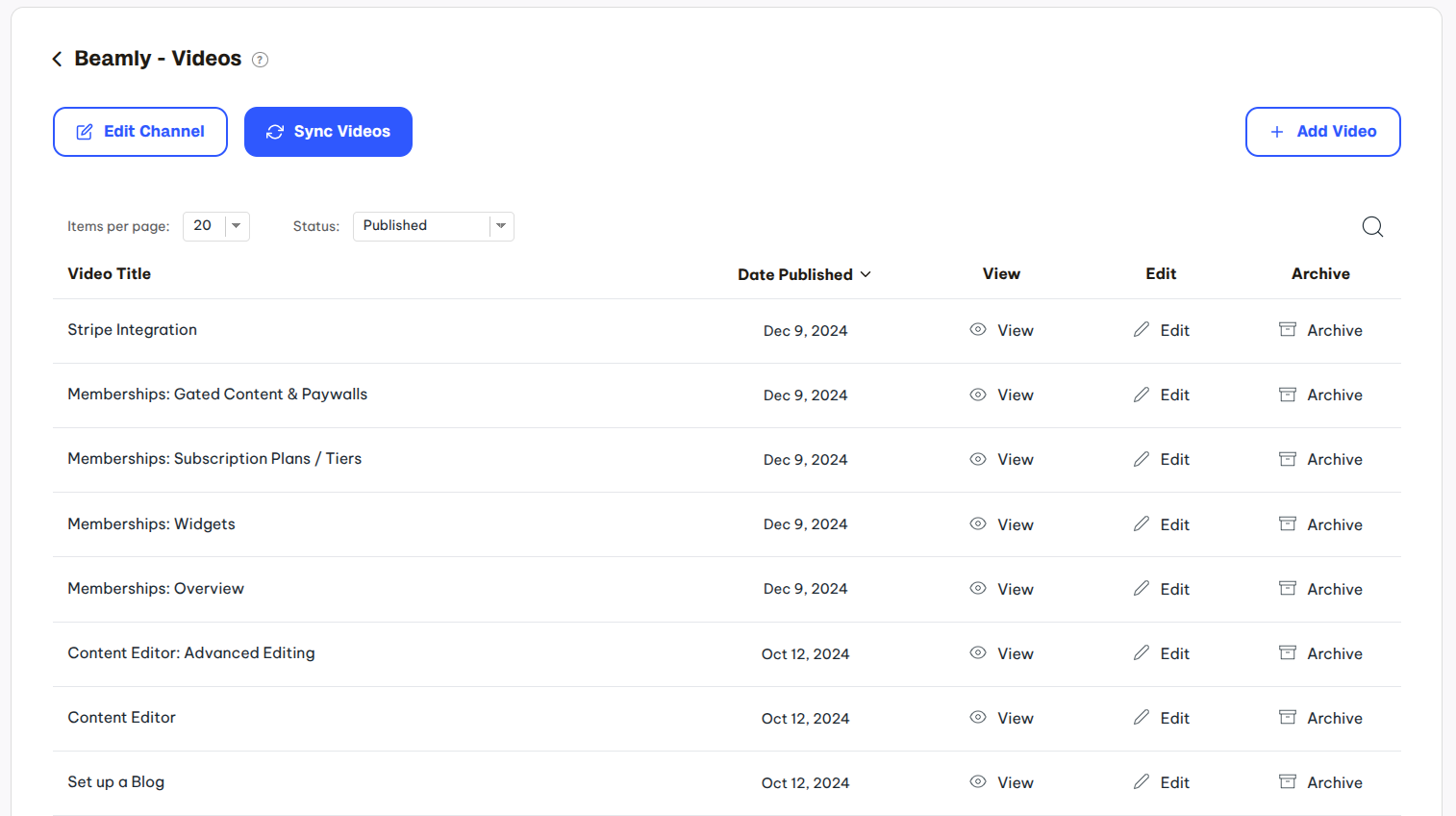
Each entry has its own page, on a specific URL. You can also create manual entries (by clicking on the "Add Video" button).
You can edit any video/episode separately, add more content, a transcript, add participants, change the featured image and much more.
Uploading videos directly (Beamly‑hosted)
- Use the uploader on the video form where you see “Video File (or video embed code)”.
- Drag & drop or select a file. You can also paste a direct video URL or an iframe embed instead of uploading.
- Uploads:
- Large-file uploads are resumable (tolerant to flaky connections) - but please make sure to wait until the upload is complete.
- Max video file size: up to 25 GB per file.
- You’ll see a progress indicator; when complete, the media is attached.
Editing channel information
If you want to edit any of the channel data, add social icons, connect participants or anything else, you can easily click on the "Edit Channel" button or icon:

Adding a list of Videos to Any Page
We make it super easy to control your own URLs and pages. You can edit any page and simply add the Video widget to it in order to show a list of video entries. You can control the layout options/styles like the number of columns to display, number of posts to load, all colors and so on -
