
Courses
Courses and Lessons
Beamly makes it simple to teach online - directly on your own site. Create a course, add lessons with video or audio, write your notes, add transcripts and publish. It all lives under your brand and domain.
You control how everything looks and where it appears. For a quick overview of what’s possible, see the Online Courses page on our website.
How it works
A course is the container for your teaching. It has a title, artwork, description, and optional categories. Depending on your plan, you can add more than just one course onto the same website.
Inside each course, you add lessons - the individual pieces of content learners watch, listen to, or read. Lessons can include a video or audio player, your written notes, a transcript, and a featured image. You can publish right away, schedule for later, and (if you sell access) restrict specific lessons to members.
Create your course
Go to your dashboard and open Settings → Courses. Click “Add course” to get started. Give your course a clear title and short slug (URL), upload an image, and write a description your learners will see on the course page. If you have co‑instructors or contributors, attach them as course participants. You can also add a large background image for the course page header, organize the course with categories, and - if your course lives elsewhere - enter an external website URL to send visitors there.
If you publish multiple courses, each one gets its own page. You can return to edit details at any time.
Sections / Modules
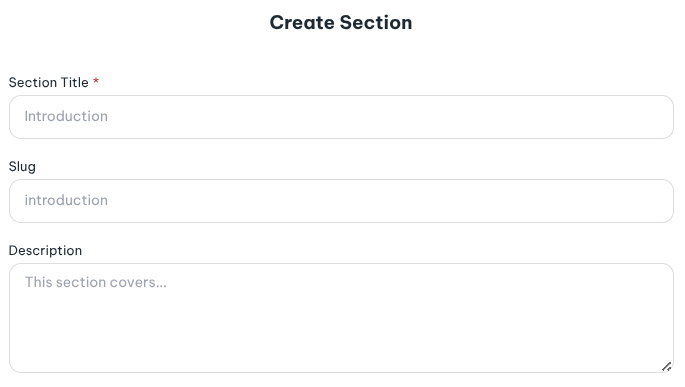
You can add sections (modules) to your course to improve the learning experience and order.
New sections can have a title, description, and an image -
Then you can create as many lessons as you need within each section:
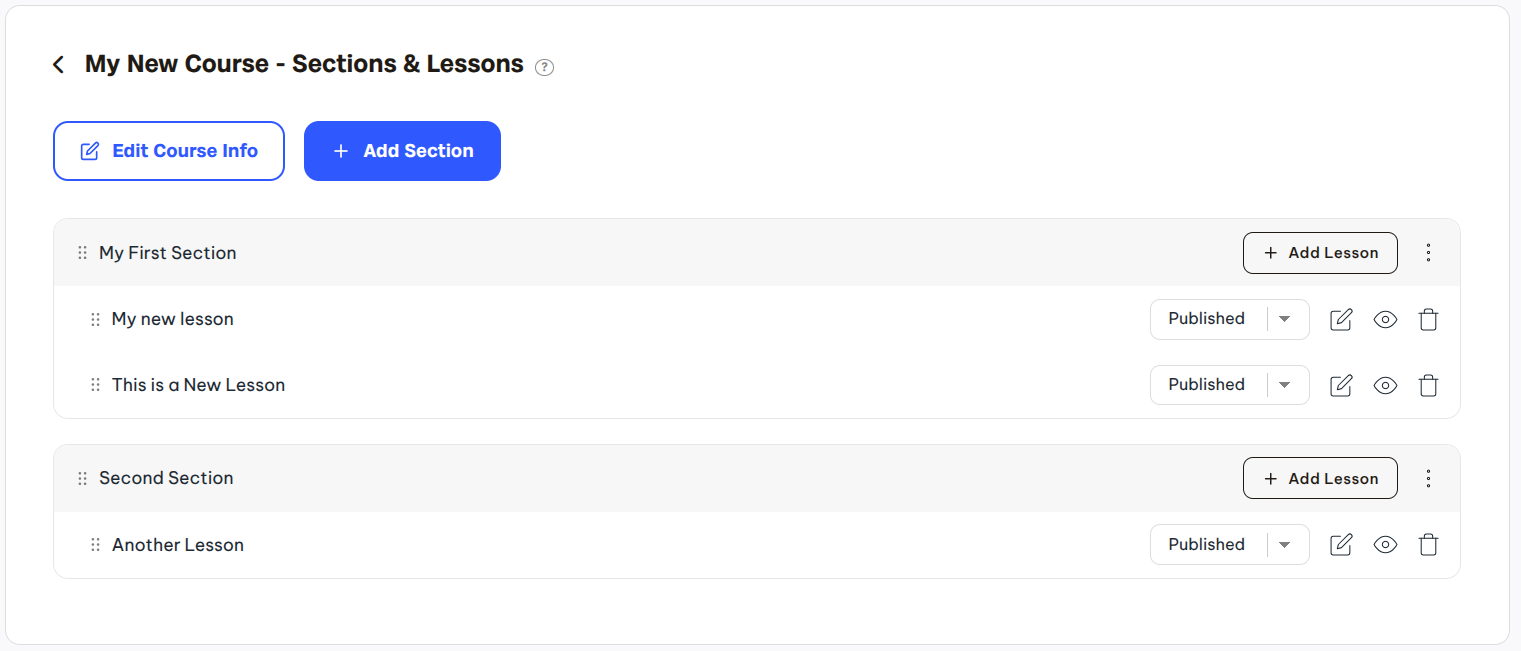
Lastly, you can move sections and lessons around to control the exact order you need to be used on the website. Simply click and hold onto the drag icon/indicator to move your sections or lessons.

Build lessons
Open your course and add lessons. Start with a title and slug, then add your content:
- Use the editor to write lesson notes and resources.
- Add lesson to a module, or to a specific category/tag.
- Upload a video file, paste a video URL, or embed a player; you can also add audio.
- Add a transcript (you can type or generate one) to improve accessibility and SEO.
- Set a featured image and a short excerpt for lists and previews.
Organize lessons with modules, categories and tags, add contributors specific to the lesson, and set the duration and publish date. You can publish immediately or schedule a future date. If you sell memberships, choose which plans can access this lesson - only members on those plans will be able to view it.
You can preview a lesson at any time to see what learners will experience.
Show courses and lessons on your site
You can use the Page Builder or the Content Editor to display courses or lessons anywhere.
Add the “Courses” block to list your courses, or the “Lessons” block to showcase lessons from one or more courses.
Both blocks are customizable so they match your design. Choose a grid or carousel, set the number of columns, adjust spacing, and decide whether to show images, titles, descriptions, or metadata like date and duration.
For lessons, you can filter by course, category, or tag and choose how many to display. This gives you complete control over how your curriculum appears across your pages.
By default, each course gets its own dedicated page, and so does each lesson on your site.
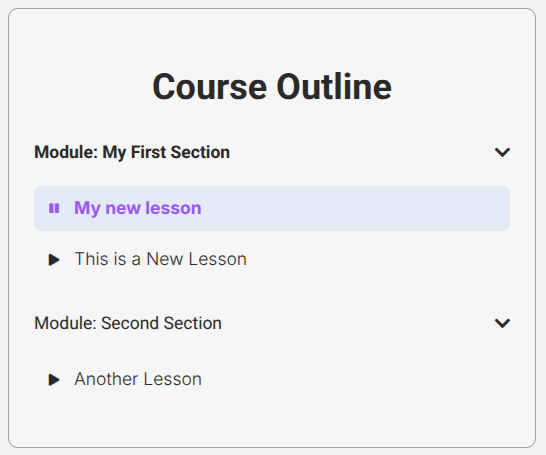
There's a small "Course Outline" widget on every lesson page -
Sell access and grow
You can sell individual courses, include them inside recurring memberships or one-time products, or gate premium lessons so only subscribers can view. Connect payments, set your pricing model, and start enrolling students - without platform fees taken from your earnings.
FAQs
Do students get accounts? Yes, students sign in with a secure login to access your content.
Can I update after publishing? Yes, you can add or edit lessons at any time, and your site will reflect the latest version.
Can I offer free and paid content? Yes, create free lessons or restrict access to members, and mix models as you grow.